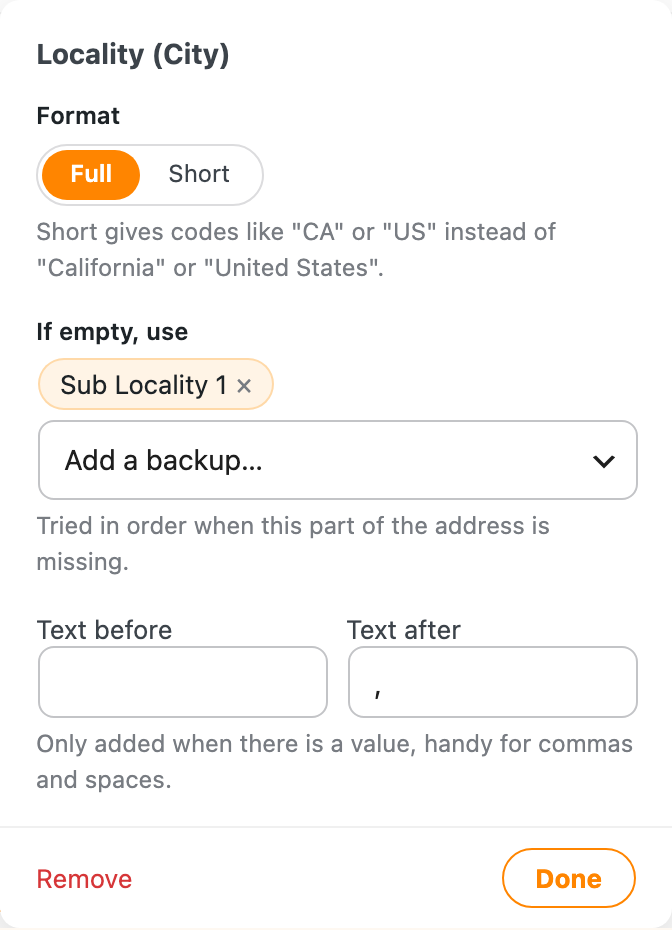
Text before and text after let you add a comma, space or any other text around a part of the address, and that text only shows up when the part has a value. It’s handy when you fill a whole address into one field.
Say you want one field to show 123 Sunshine St, Fort Collins, CO 80525. If you type the commas between the parts yourself and Google doesn’t send a city for an address, you’d end up with 123 Sunshine St, , CO 80525. If you put the comma in the city’s Text after instead, the field reads 123 Sunshine St, CO 80525 when the city is missing.
Add text before or after
- Go to Settings > Address Autocomplete, open the Instances tab and find the field under Fill in these fields.
- Click the tag for the part of the address, like City.
- Type into Text before or Text after. For the example above, the street, city and state each get a Text after: a comma and space for the street and city, and a space for the state.
- Click Done, then Save Changes.
In the template text
Behind the tags, the example above is saved like this:
{address1:long_name after=", "}{locality:long_name after=", "}{administrative_area_level_1:short_name after=" "}{postal_code:long_name}
before="..." works the same way, adding its text in front of the value.