By default, an instance loads Google’s script on every page of your site. If your form is only on a few pages, choose them, and the rest of your site won’t load anything extra.
- Go to Settings > Address Autocomplete and open the Instances tab.
- Under Where it runs, choose one or more pages in Pages.
- Click Save Changes.
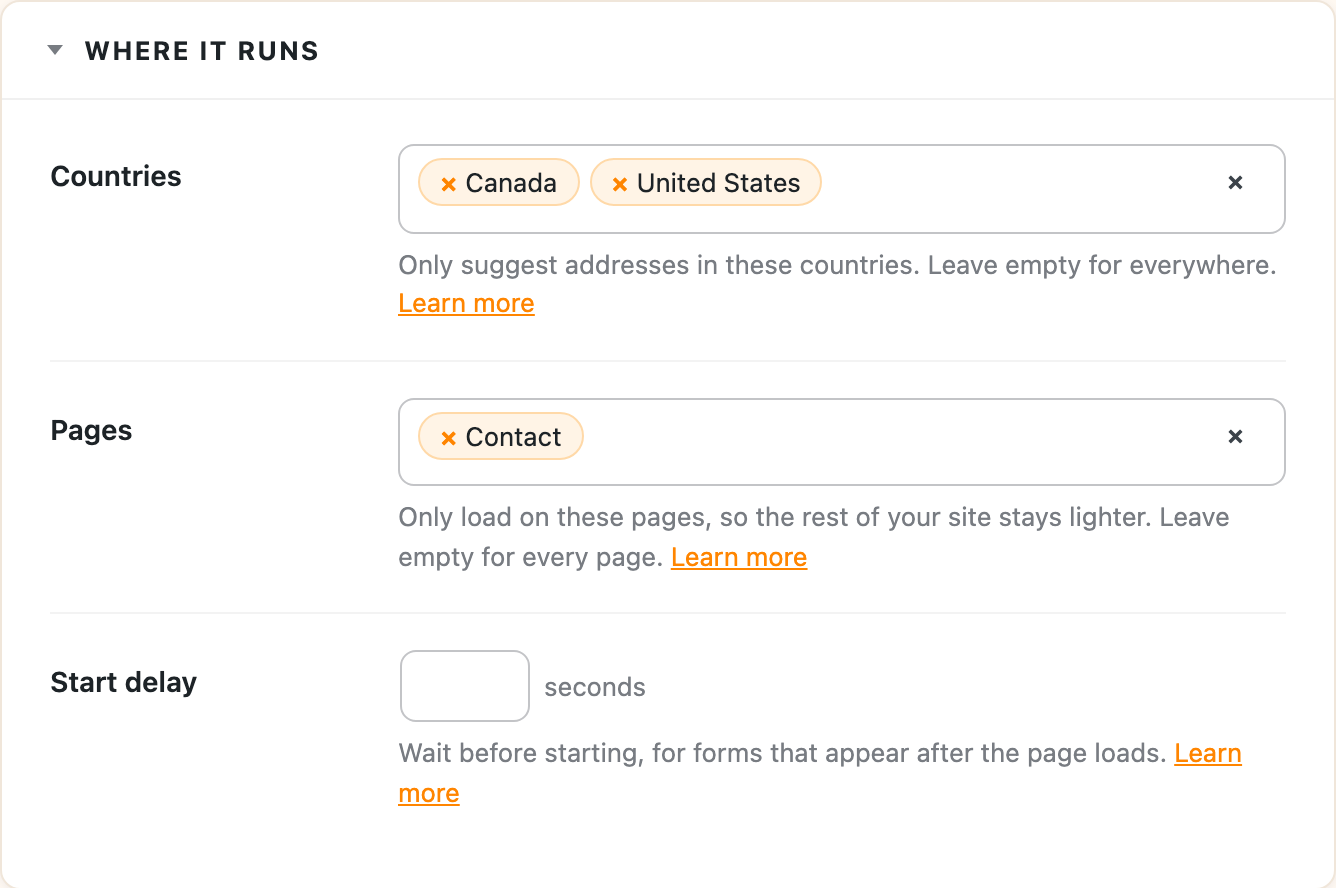
Leave Pages empty to load it everywhere, which you’d only need if the form shows up on many pages, like one in your footer.
If you set up your form with Pick fields, choose the same page here too, since picking the fields doesn’t change Pages.
One-click integrations
Integrations like WooCommerce, Easy Digital Downloads and LifterLMS already know where their forms are, like the checkout page, so there’s nothing to choose for those.
When to use it
It’s worth setting for any instance you set up yourself, like:
- a contact form on your Contact page
- a quote or application form on one landing page
- a store locator on its own page