Address Autocomplete Premium lets you set up as many forms as you need. Each one is an instance, with its own address field, fields to fill in, countries and pages. The free version has one instance.
For example, a contact form on one page and a quote request form on another would be two instances.
Add an instance
- Go to Settings > Address Autocomplete and open the Instances tab.
- Click + Add Instance.
- Set up the new instance the same way as the first one, with Pick fields or CSS selectors. Setting up an instance walks through it.
- Click Save Changes.
Switch between instances
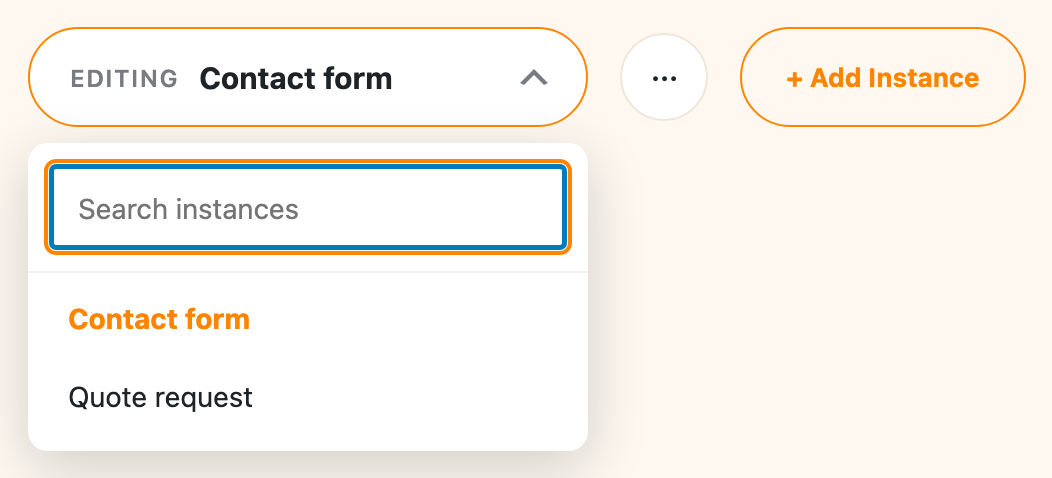
Click the name next to Editing at the top of the Instances tab to see all your instances, then choose the one to edit. If you have a lot of them, type in the search box to find one.
Rename or delete an instance
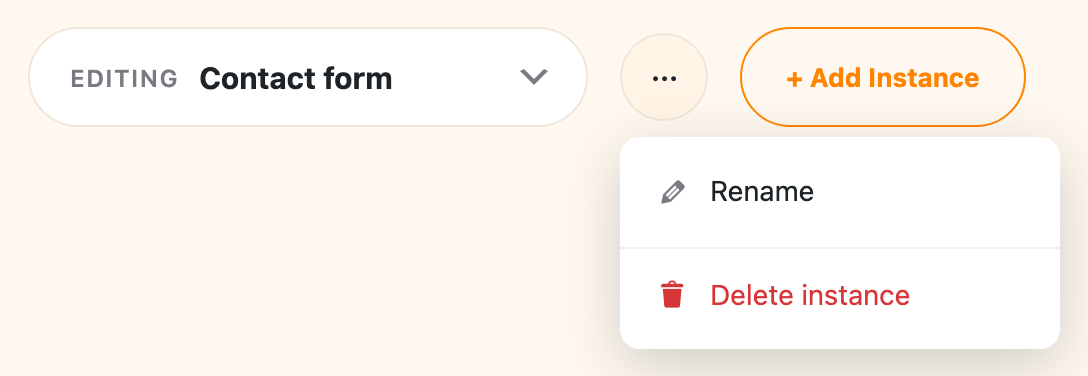
Click the … button next to the instance name, then choose Rename or Delete instance. A name only shows in your settings, so pick whatever helps you tell them apart, like “Contact form” or “Quote request”. Save your changes to keep a new name.
Instances from integrations
The one-click integrations, like WooCommerce and Easy Digital Downloads, add their own instances to the list. They work without any changes, and you can edit them if your checkout has been customized. Those instances can’t be deleted from here. Turn off the integration on the Integrations tab instead.
Choose pages for each one
Set the pages for each instance, so each form’s setup only loads on the page where that form is.