Confetti can celebrate three different moments in Tutor LMS, and each one gets its own effect. That lets you use something small when a student enrolls and save the big effect for completing the course.
Turn on the integration
- Go to Settings → Confetti and open the Integrations tab.
- Find Tutor LMS in the list and click its toggle.
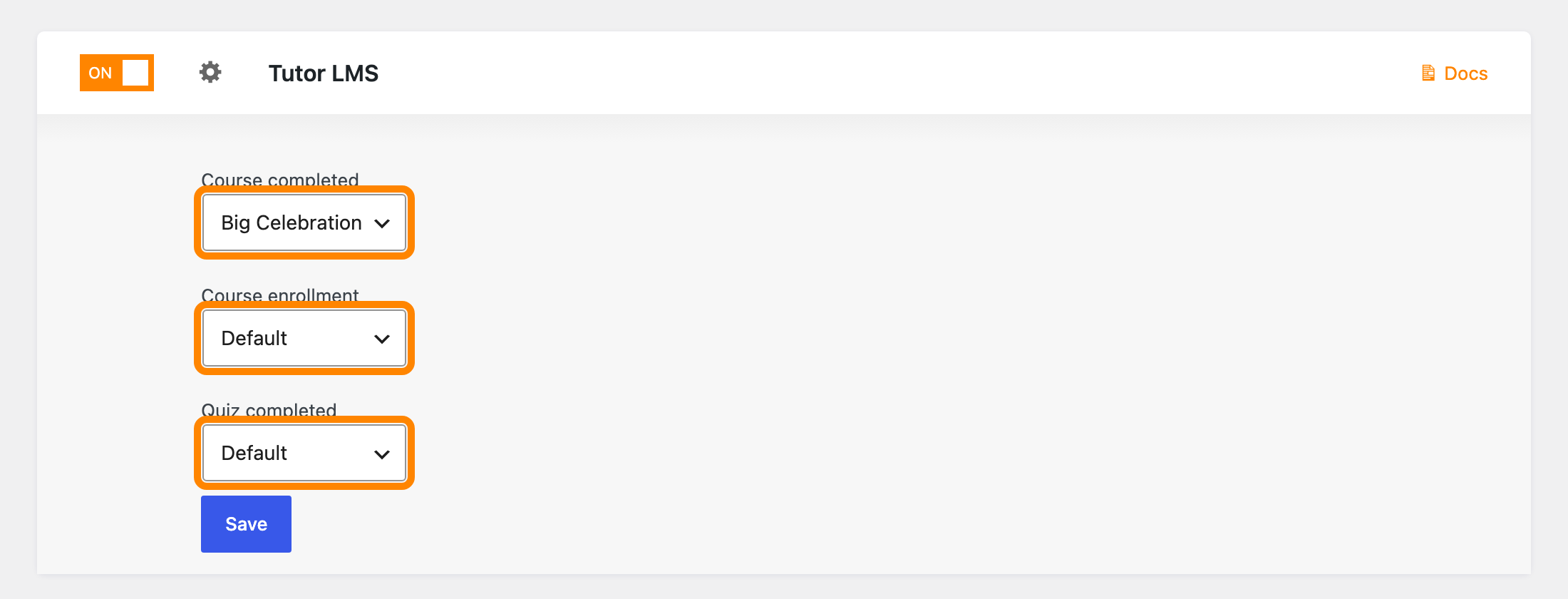
- Click the gear icon next to Tutor LMS to open its settings.
You’ll see a dropdown for each moment. They all start on None (Disabled), so pick an effect for the ones you want and leave the rest alone.
| Setting | When it runs |
|---|---|
| Course completed | A student finishes the whole course |
| Course enrollment | A student enrolls in a course |
| Quiz completed | A student finishes a quiz |
Click Save when you’re done.
When it fires
Each effect runs at the moment Tutor LMS records that step. A student revisiting a course they already finished won’t set it off again.
Choosing None (Disabled) on a dropdown turns that one moment off without touching the others.