A preset is a saved set of tags you use a lot, like the ones for your monthly newsletter or a partner’s links. Pick it in the Link Builder or the Bulk Builder and its tags are filled in, so every link for that campaign or channel is spelled the same way.
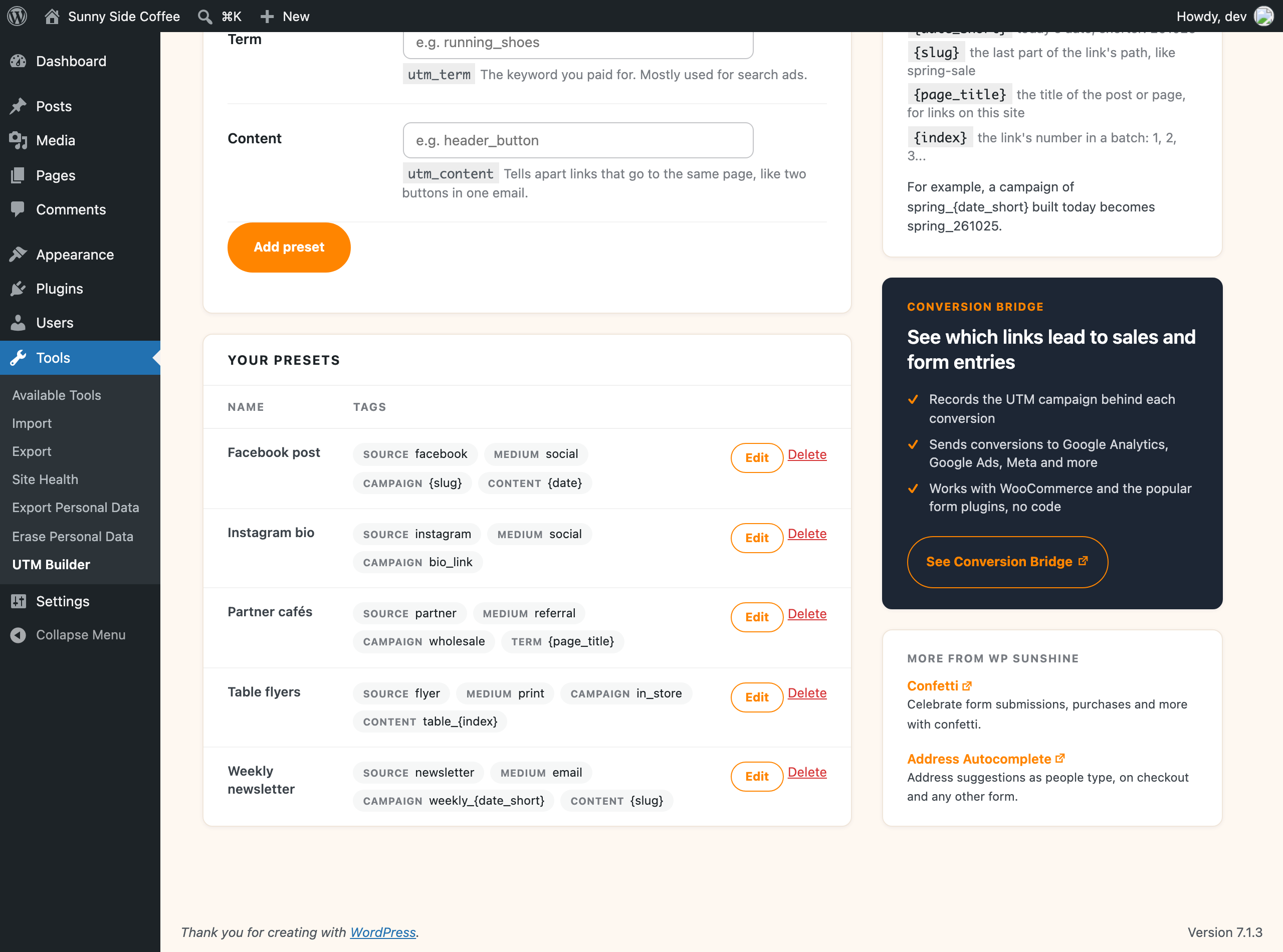
Add a preset
- Go to Tools > UTM Builder > Presets.
- Give it a Name you’ll recognize, like “Monthly newsletter”.
- Fill in the tags you want it to set. Leave the others empty.
- Click Add preset.
To change one, click Edit next to it in Your presets, then Update preset. Deleting a preset doesn’t change any links already made with it.
Use a preset
- In the Link Builder, pick it from Start from a preset at the top.
- In the Bulk Builder, pick it from Preset in the Tags section.
Either way, the preset fills in the tags and you can still change any of them before you make your links.
The AI tools and the REST API can use presets too, so links an assistant makes for you match the ones you make by hand.
Tokens
Put a token in any tag and it’s filled in for each link:
| Token | Becomes |
|---|---|
{date} |
Today’s date, like 2026-10-26 |
{date_short} |
Today’s date, shorter, like 261026 |
{slug} |
The last part of the link’s path, so example.com/blog/spring-sale/ gives spring-sale |
{page_title} |
The title of the post or page, for links to your own site |
{index} |
The link’s number in a batch: 1, 2, 3 and so on |
For example, a campaign of spring_{date_short} built on October 26, 2026 becomes spring_261026, and a content tag of {slug} in a Bulk Builder batch gives every link its own page name.
Tokens are worked out when the link is made, so a link built today keeps today’s date. The formatting rules run after that, so a page title like “Spring Sale!” ends up as spring_sale with the rules that come turned on.
You can use tokens without a preset as well, by typing them straight into the tags on the Bulk Builder. The list is under Tokens you can use in any tag at the bottom of the Tags section.