Google doesn’t send every part of the address for every place, because countries and even neighborhoods are organized differently. A backup value tells the plugin which part to use instead when the one you asked for is missing.
For example, Google files some New York addresses under a borough like Brooklyn and leaves the city empty. With Sub Locality Level 1 as the backup for the city, the city field gets “Brooklyn” instead of staying blank.
Add a backup
- Go to Settings > Address Autocomplete, open the Instances tab and find the field under Fill in these fields.
- Click the tag for the part of the address, like City.
- Under If empty, use, choose a part from Add a backup….
- Click Done, then Save Changes.
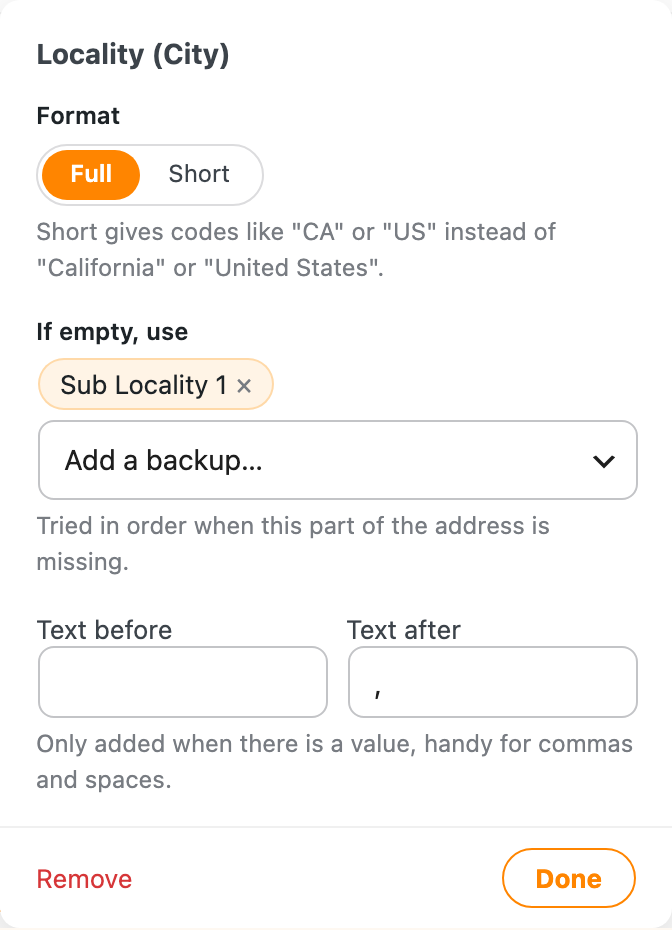
You can add more than one backup. They’re tried in order, and the first one Google sent is used. A tag with a backup, or with text before or after it, shows a small dot so you can spot it in the list.
The free version’s list of parts is short, so backups are most useful with the extra parts in Address Autocomplete Premium, like the sub locality and county.
In the template text
Behind the tags, each field saves a line of template text, and a backup is written like this:
{locality:long_name fallback="sublocality_level_1:long_name"}
More than one backup is separated with commas:
{locality:long_name fallback="sublocality_level_1:long_name,administrative_area_level_2:long_name"}
Setups made before version 2.0 already use this format, and they show up as tags in the new settings screen with no changes needed.