The field picker sets up Address Autocomplete on any form on your site. It opens your form, finds the address fields and tags each one, so you don’t need to look up CSS selectors. It’s in both the free version and Address Autocomplete Premium.
Start the picker
- In your WordPress admin, go to Settings > Address Autocomplete and open the Instances tab.
- Under Address field, choose the page that has your form in Pick it on your page, then click Pick fields. Your page opens in a new tab.
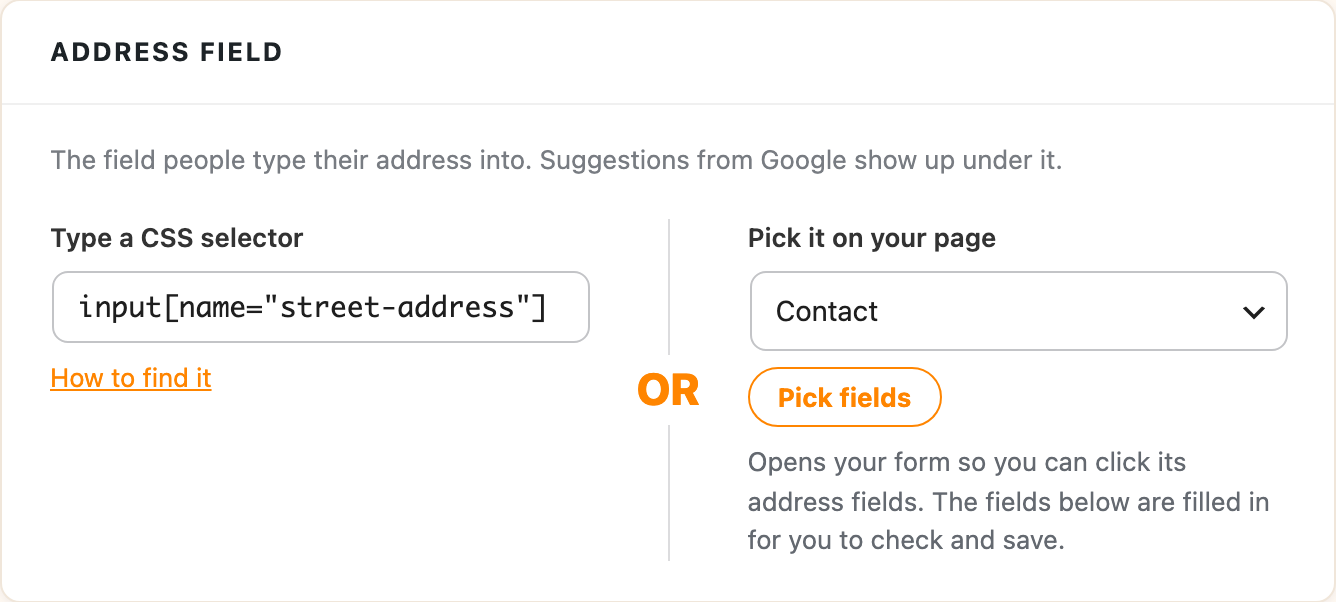
If your browser blocks the new tab, allow pop-ups for your site and click Pick fields again.
Check the tags
The picker puts a green tag on each address field it finds, like “Street address”, “City” and “Country”. The buttons along the bottom of the page show which parts of the address have a field, with a check mark next to each one it found.
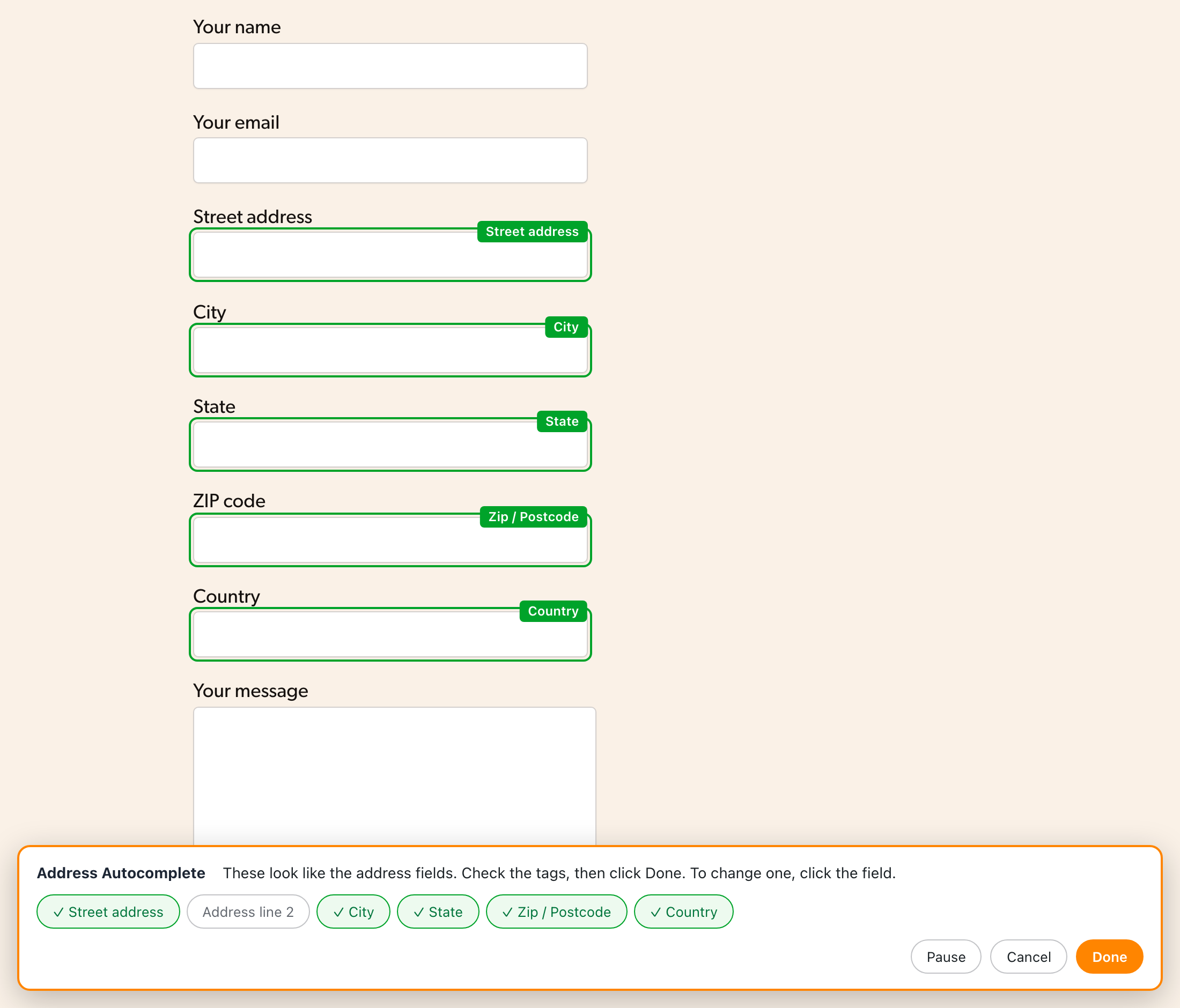
If the picker can’t tell which fields are the address, it asks you to click the field where people type their street address. Click it, and the picker looks for the rest of the address fields around it.
Fix a tag or add a missed field
To change a tag, click the field on your form and choose what it’s for in the What is this field? menu. Choose Not an address field to take a tag off a field.
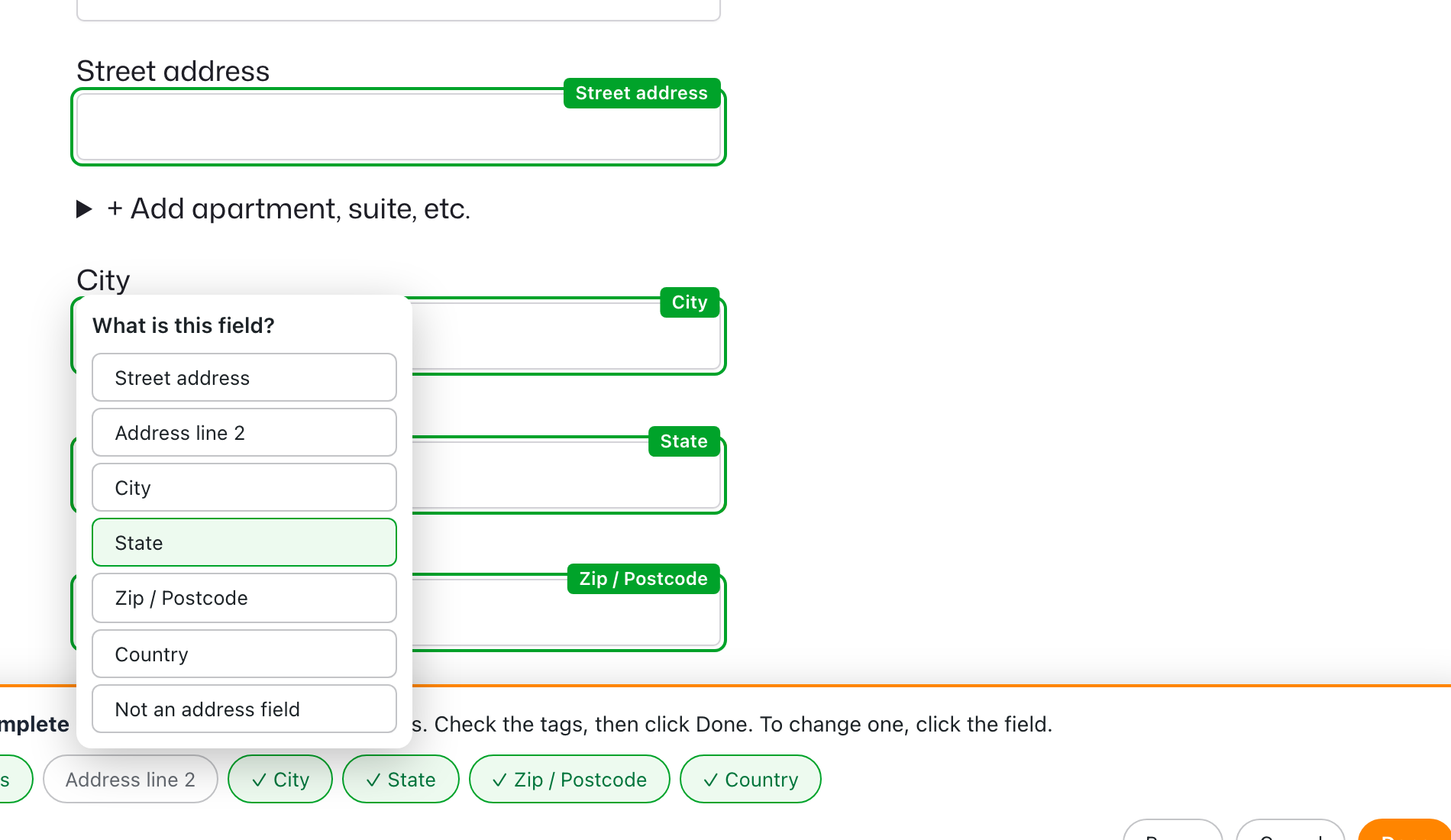
You can also start from the buttons along the bottom. Click a part of the address, like Address line 2, then click the field on your form it belongs to.
Fields that stay hidden until someone clicks
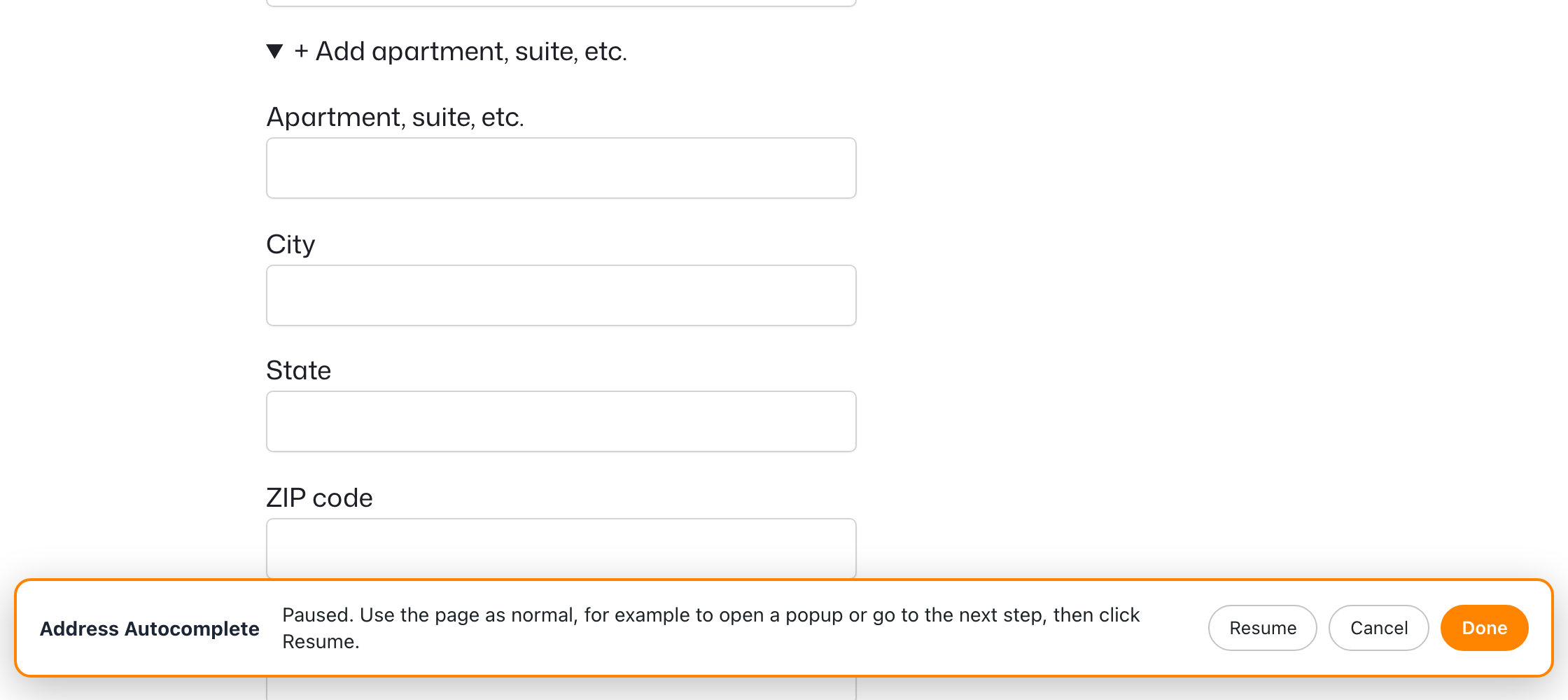
Some forms hide fields until someone clicks something, like a popup, the second step of a multi-step form, or a link that opens an apartment or suite field. The picker can’t see a field while it’s hidden, so:
- Click Pause. Your page works as normal again while the picker waits.
- Open the hidden part of your form.
- Click Resume, then click the field and choose what it’s for.
Save your fields
- When the tags look right, click Done. The picker tab closes, and the fields you picked show up under Fill in these fields on the Instances tab.
- Look over the fields, then click Save Changes.
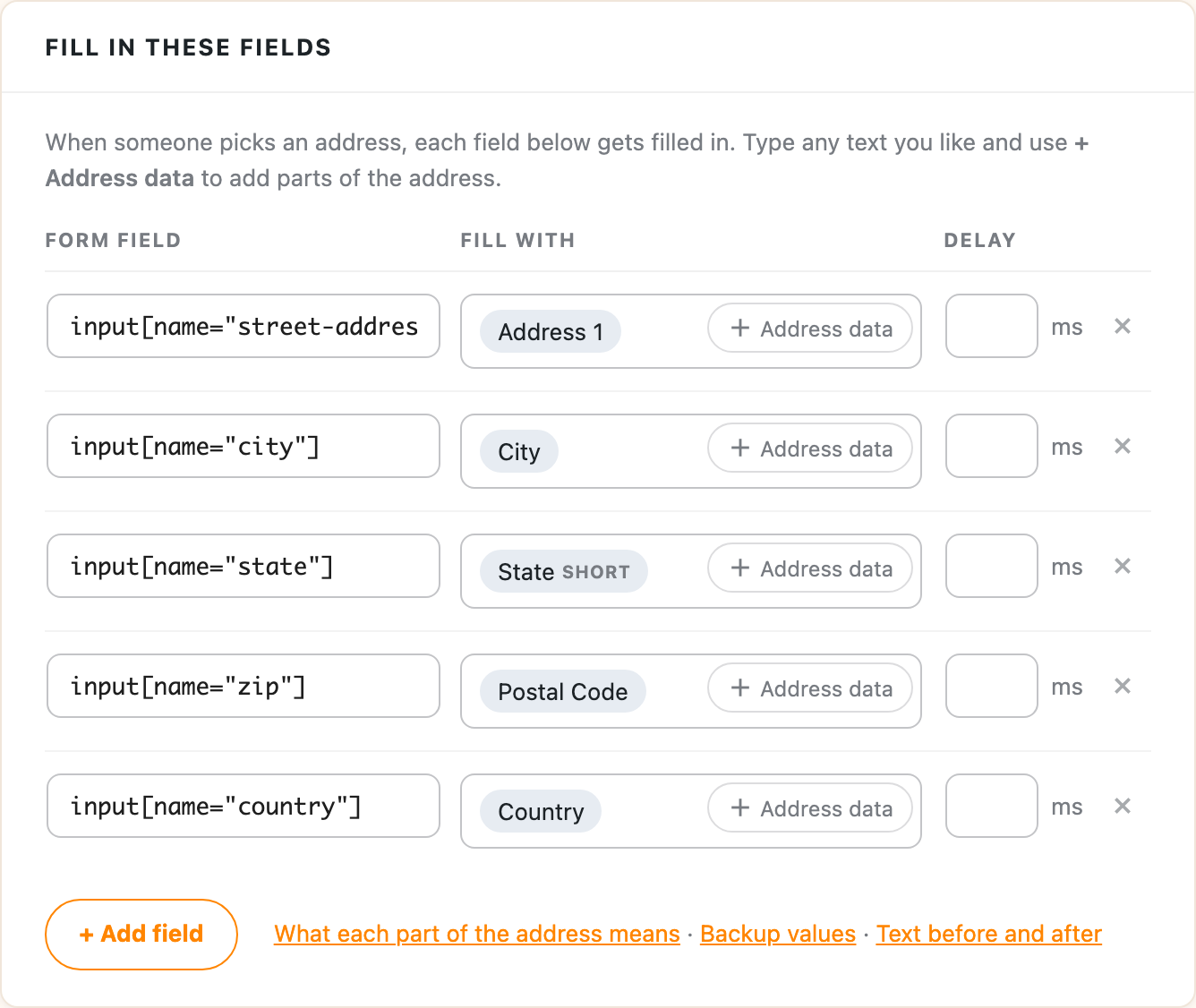
Now go to your form and start typing an address. Pick a suggestion, and the street, city, state, ZIP code and country fill themselves in.
To change what a field gets filled with, or to limit the countries and pages it runs on, see Setting up Address Autocomplete.