The Bulk Builder makes up to 2,000 tagged links at once and saves them as a batch you can find again later. Go to Tools > UTM Builder > Bulk Builder, pick how you want to start, and a preview shows the links before anything is saved.
Four ways to start
Under How do you want to start?, pick one:
- A list of links gives every page in your list the same tags. Handy for tagging all the links in one newsletter.
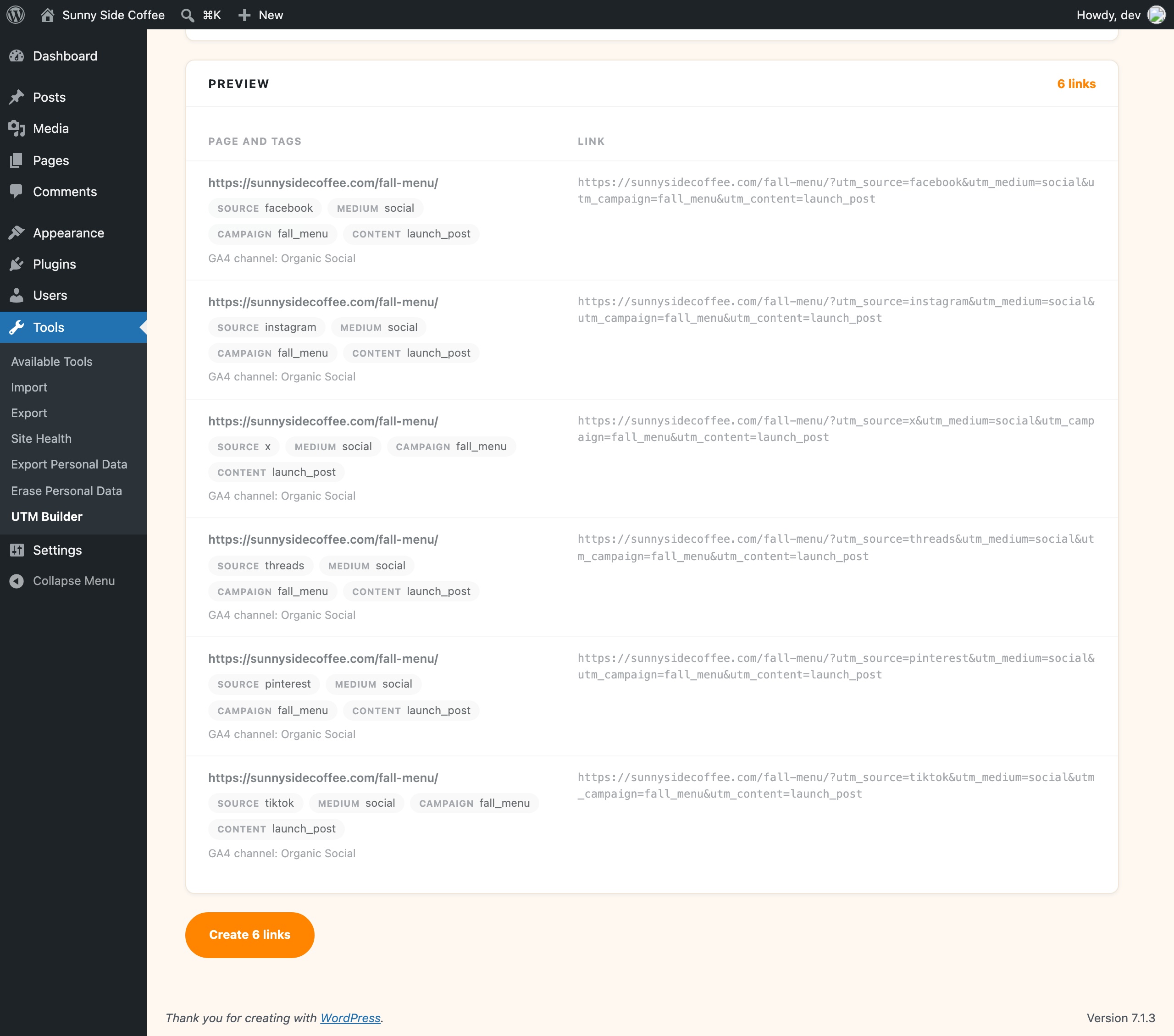
- Social networks makes one link per network for each page, with the network as the source and
socialas the medium. - Every combination takes a few values for any tag and makes a link for every mix, which is useful for testing ad versions.
- A CSV file makes one link per row, each with its own tags.
A list of links
Paste your pages into Links, one per line, then fill in the tags under Tags. Any UTM tags already on a link are replaced, and its other parameters are kept.
Social networks
Paste your pages into Links, then tick the networks under Networks: Facebook, Instagram, X (Twitter), LinkedIn, Threads, Bluesky, Pinterest, YouTube, TikTok and Reddit. Each network becomes the source (facebook, x, linkedin and so on) and the medium is social, so those two fields are hidden. Add a campaign and anything else you want under Tags.
One page and five networks gives you five links, one to put in each post.
Every combination
Paste your pages into Links, then list values under Values to combine, one per line, in any of the tag boxes. Every mix becomes a link: two sources and three contents makes six links for each page. Leave a box empty and that tag uses the value under Tags instead.
Combinations multiply fast, so keep an eye on the count in the preview.
A CSV file
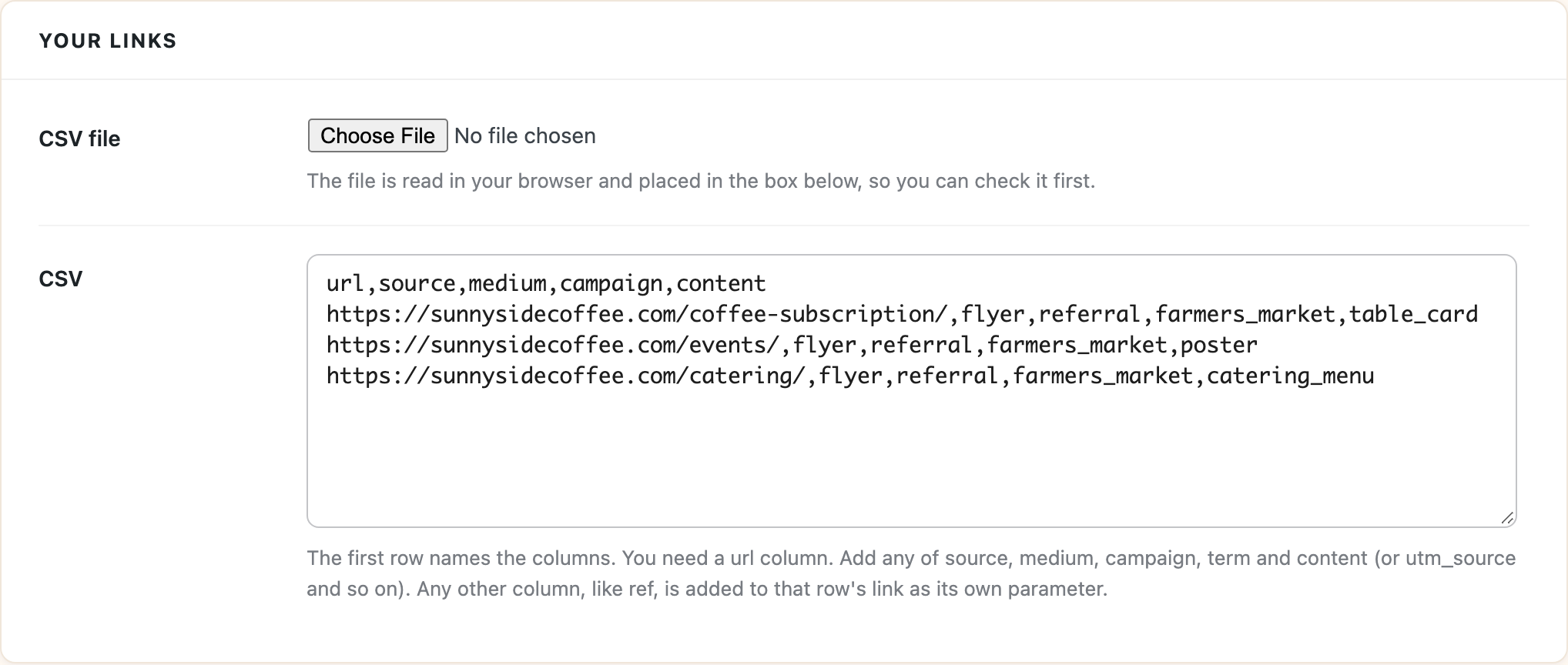
Choose a file under CSV file, or paste the text into the CSV box. The file is read in your browser and put in the box, so you can check it before you go on.
The first row names the columns. You need a url column, and you can add any of source, medium, campaign, term and content (or utm_source, utm_medium and so on):
url,source,medium,campaign
https://example.com/sale/,newsletter,email,spring_sale
https://example.com/blog/new-post/,facebook,social,spring_sale
- A blank cell uses the tag you filled in under Tags, so you only need columns for the tags that change from row to row.
- Any other column, like
ref, is added to that row’s link as its own parameter, exactly as typed. - Commas, semicolons and tabs all work, so a file saved from Excel in any language is fine.
Tags for every link
The Tags section holds the tags that go on every link (or fill in the blanks, for a CSV). You can:
- Pick a Preset to fill them in. See presets and tokens.
- Use tokens like
{slug}or{index}to give each link something of its own. The full list is under Tokens you can use in any tag. - Add Other parameters, one per line, like
ref=partner. These go on every link exactly as typed.
The formatting rules and team lists from Settings apply here too.
Save the batch
In the Save section:
- Batch name is how you’ll find these links again under Saved Batches, like “Spring sale emails”.
- Notes is for anything you’ll want to know later, like where the links are going or who asked for them.
- Short links gives every link a short link. Short links on your own domain work on any batch. Bitly and Rebrandly make one request per link and count toward your plan with them, so they work on batches of up to 50 links.
If you’ve turned on link checks, each page is loaded before the batch is saved, for batches going to up to 50 different pages.
Preview, then create
The Preview shows how many links you’ll get, the first 20 of them, and the Google Analytics 4 channel for each one. Lines in your list that aren’t web addresses are listed there too, so you can fix them before going on.
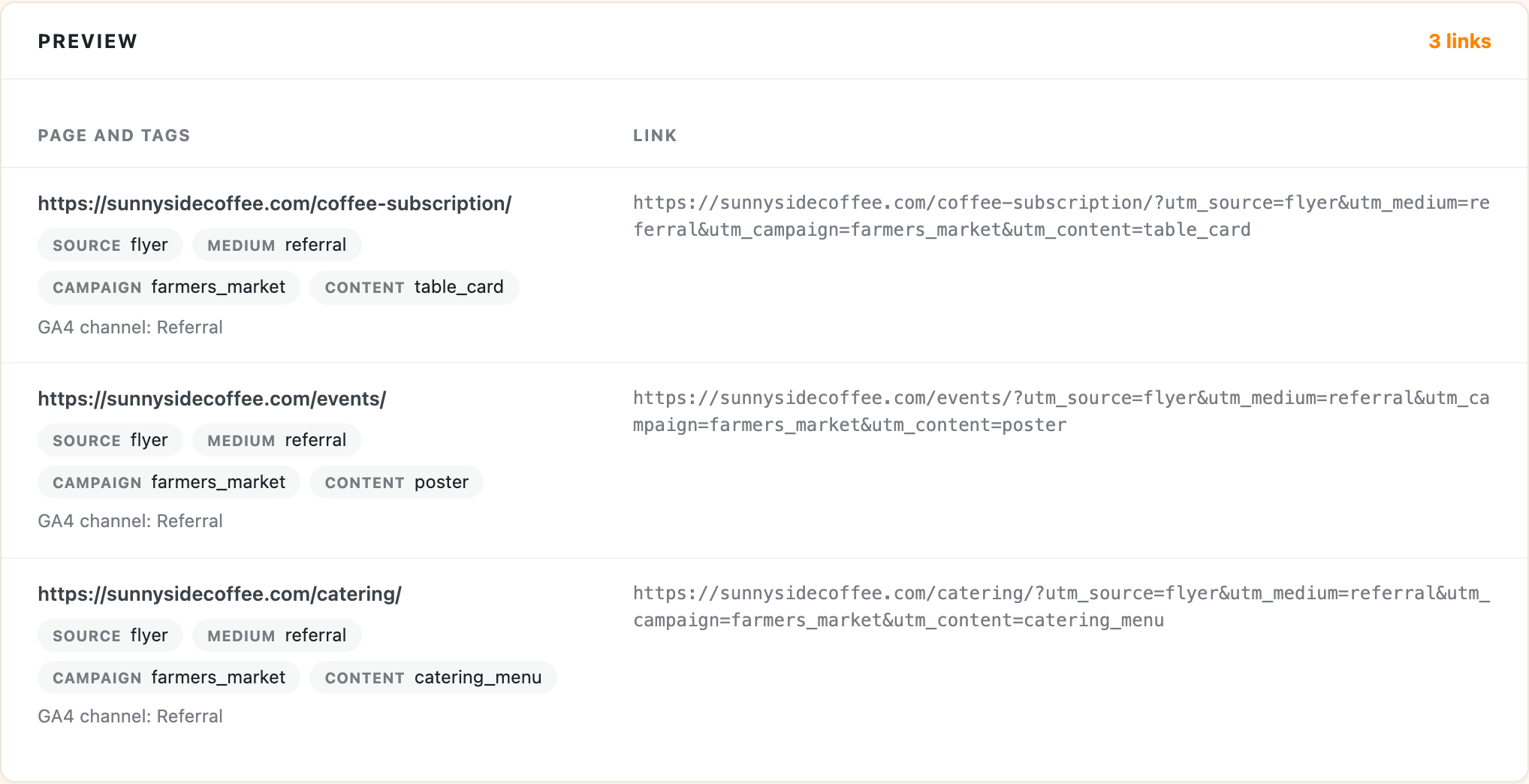
When it looks right, click Create links. Shortening and link checks can take a minute on a big batch. The batch opens under Saved Batches, ready to copy or download.