Confetti can celebrate a new member right after their membership purchase goes through, on the MemberPress thank you page.
Turn on the integration
- Go to Settings → Confetti and open the Integrations tab.
- Find MemberPress in the list and click its toggle.
That’s all it takes to get it running, because switching the toggle on points MemberPress at your Default effect.
MemberPress has to be installed and active to show up under Available Plugin Integrations. If you find it under Not Currently Available instead, the plugin isn’t active yet.
Choose which effect runs
If you’ve saved more than one effect on the Instances tab, you can tell MemberPress which one to use.
- Click the gear icon next to MemberPress.
- Pick the effect you want from the Confetti Instance dropdown.
- Click Save.
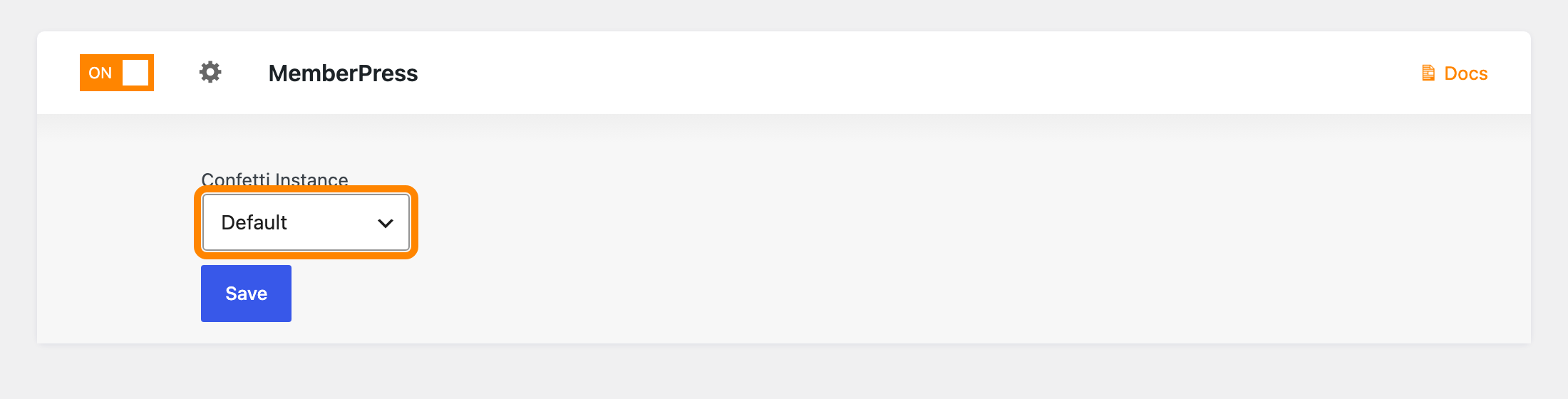
Choosing None (Disabled) turns the integration back off.
When it fires
The confetti runs on the MemberPress thank you page, which is where a member lands once their purchase completes. It’s tied to that moment rather than to the membership itself, so a member who comes back later to look at their account won’t see it again.