Turn on the integration
- Go to Settings → Confetti and open the Integrations tab.
- Find Contact Form 7 in the list and click its toggle.
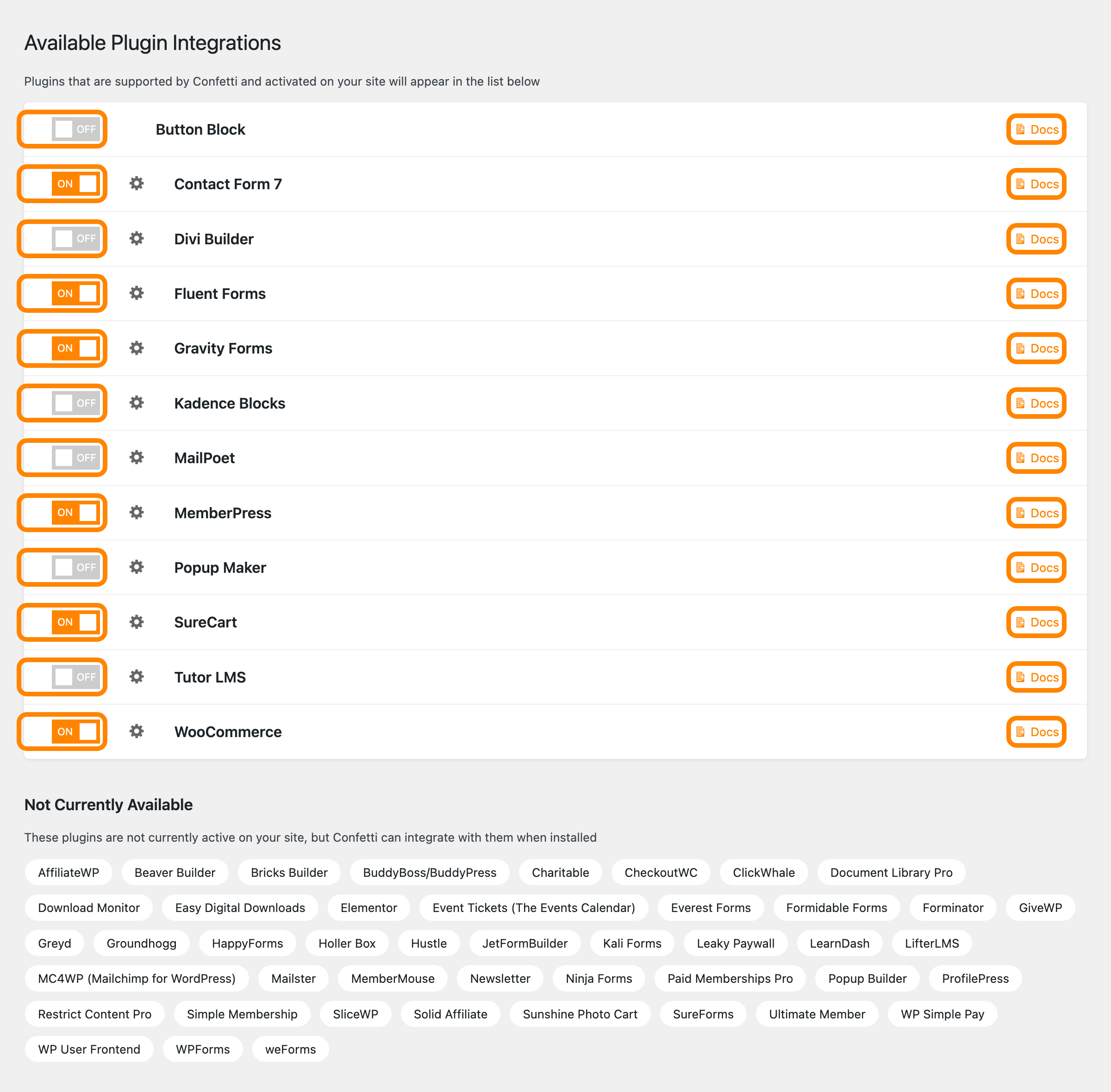
There’s no effect to pick here, because that choice happens on each form. Turning the toggle on is what makes the confetti option appear in Contact Form 7, and every form stays quiet until you choose an effect for it.
Add confetti to a form
- Go to Contact → Contact Forms and edit the form you want. The gear icon next to Contact Form 7 on the Integrations tab takes you straight there.
- Open the Confetti tab.
- Pick the effect you want.
- Save the form.
Repeat on any other form you want to celebrate. Leaving a form’s effect unset keeps it quiet, which is how you turn one back off.
When it fires
The confetti runs when the form submits successfully. A submission that fails validation, or one Contact Form 7 rejects as spam, shows the error instead and no confetti appears.