Most forms don’t need CSS selectors anymore, because Pick fields on the Instances tab finds your address fields for you. Setting up an instance shows how. A selector is still handy for a field the picker can’t reach, like a hidden field for latitude and longitude, or when you want to fix one field by hand.
A CSS selector is a short piece of text that points to one field on the page, like #billing_city or input[name="city"]. Your browser can copy it for you.
In Google Chrome
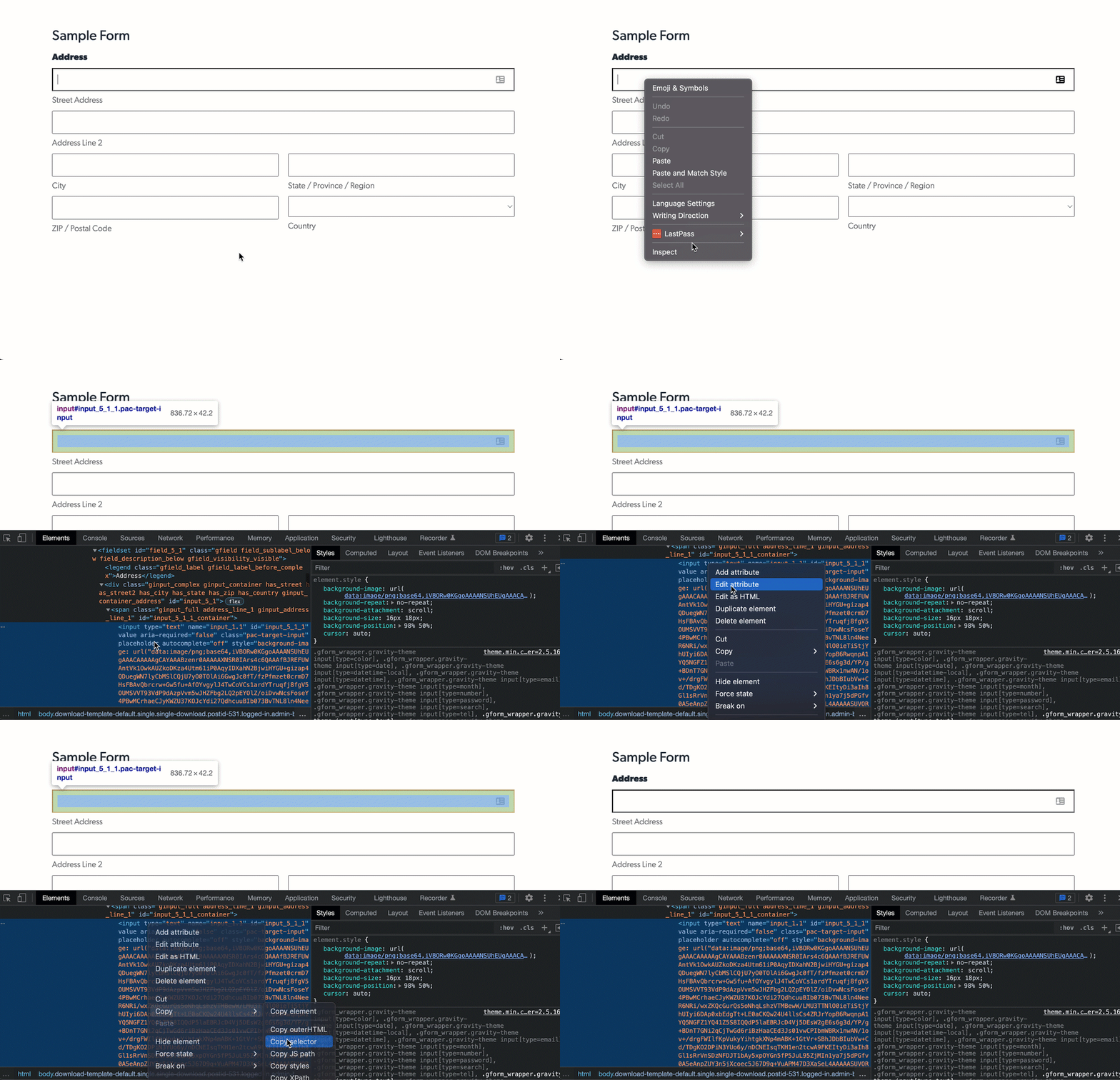
Go to the page with your form. Right-click the field you want and click Inspect. The field is highlighted in the code panel that opens. Right-click the highlighted line and choose Copy > Copy selector, then paste it into the Form field box in your Address Autocomplete settings.
In Safari
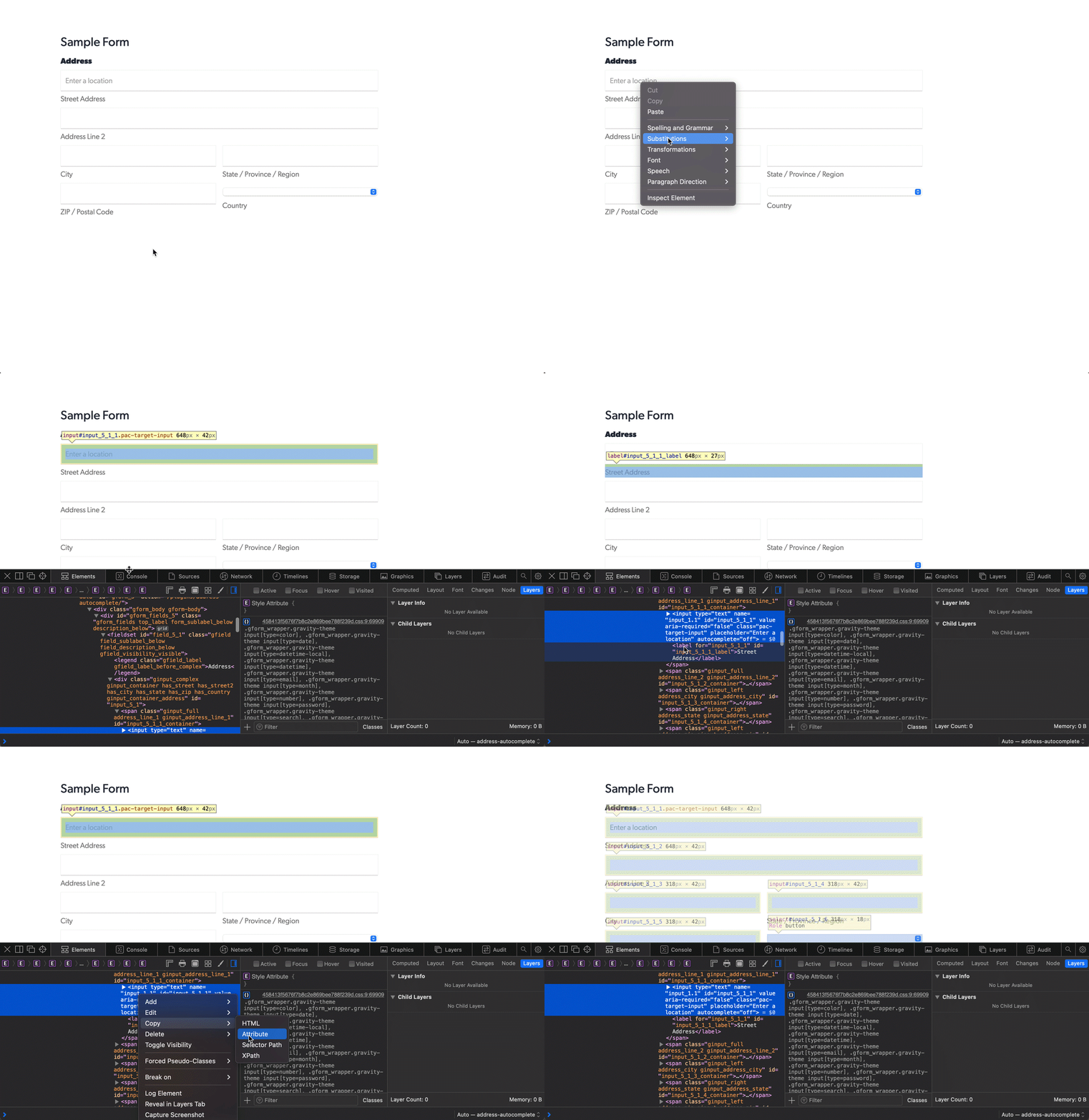
Go to the page with your form. Right-click the field you want and click Inspect Element. The field is highlighted in the code panel that opens. Right-click the highlighted line and choose Copy > Selector Path, then paste it into the Form field box in your Address Autocomplete settings.
The selector your browser copies can be long. If the field has an ID, # followed by the ID, like #billing_city, is shorter and works the same.