If no address suggestions show up when you type, or Google puts a small exclamation mark (!) inside your address field, Google is refusing to load the suggestions. The cause is nearly always in your Google Cloud account.
Check your key with Test key
Go to Settings > Address Autocomplete, open the Settings tab and click Test key under Google. The plugin asks Google to load suggestions with your key and tells you what went wrong in plain words.
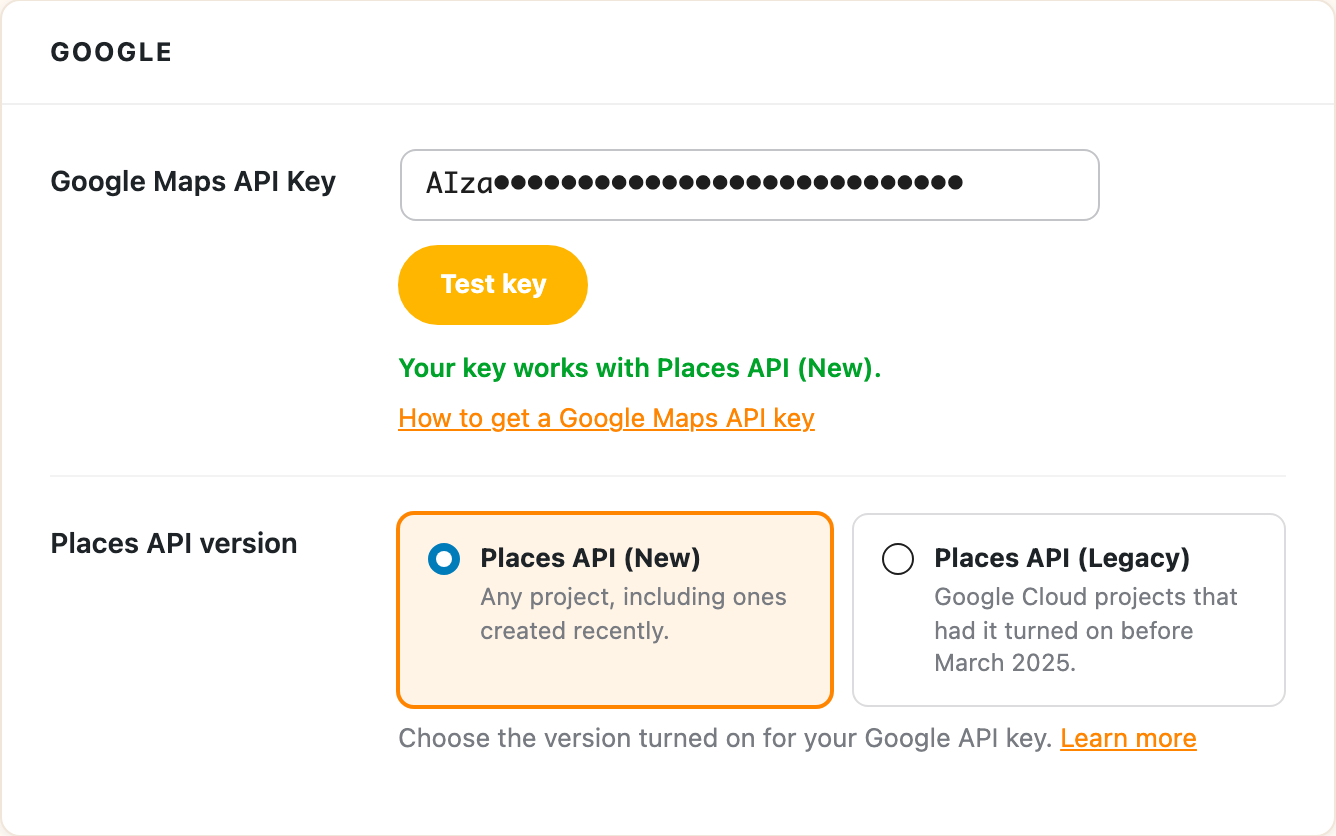
It catches the usual causes:
- Google doesn’t recognize the key. It has a typo, or it was deleted in Google Cloud. Copy it again from APIs & Services > Credentials.
- The key isn’t allowed on your website. If the key is limited to certain websites, add yours in both of these forms:
yourdomain.com/*and*.yourdomain.com/*. - Billing isn’t set up. Google requires a billing account on the project, even though most sites stay within the free amount.
- An API isn’t turned on. The key needs the Maps JavaScript API and a Places API. The test tells you which one is missing.
- The key is limited to certain APIs. If you limit which APIs the key can use, both of those need to be on the list.
- The wrong Places API is chosen. If your key works with the other version, the test says so. Choose that one under Places API version and save.
Google Maps API key walks through setting all of this up.
If the test passes but the form still doesn’t work
The key is fine, so the problem is with how the plugin finds your form:
- Check the instance on the Instances tab is pointed at your address field. Running Pick fields again is the quickest way to be sure.
- If the instance has Pages set, make sure the page with your form is one of them.
- If your form appears in a popup or after a click, see hidden fields and popups.
Your browser’s developer console also shows the message Google sends back, which is worth including if you open a support ticket.