Each field in an instance’s Fill in these fields list gets one or more parts of the address that Google sends back. To add one, click + Address data in that field’s row and choose it from the list.
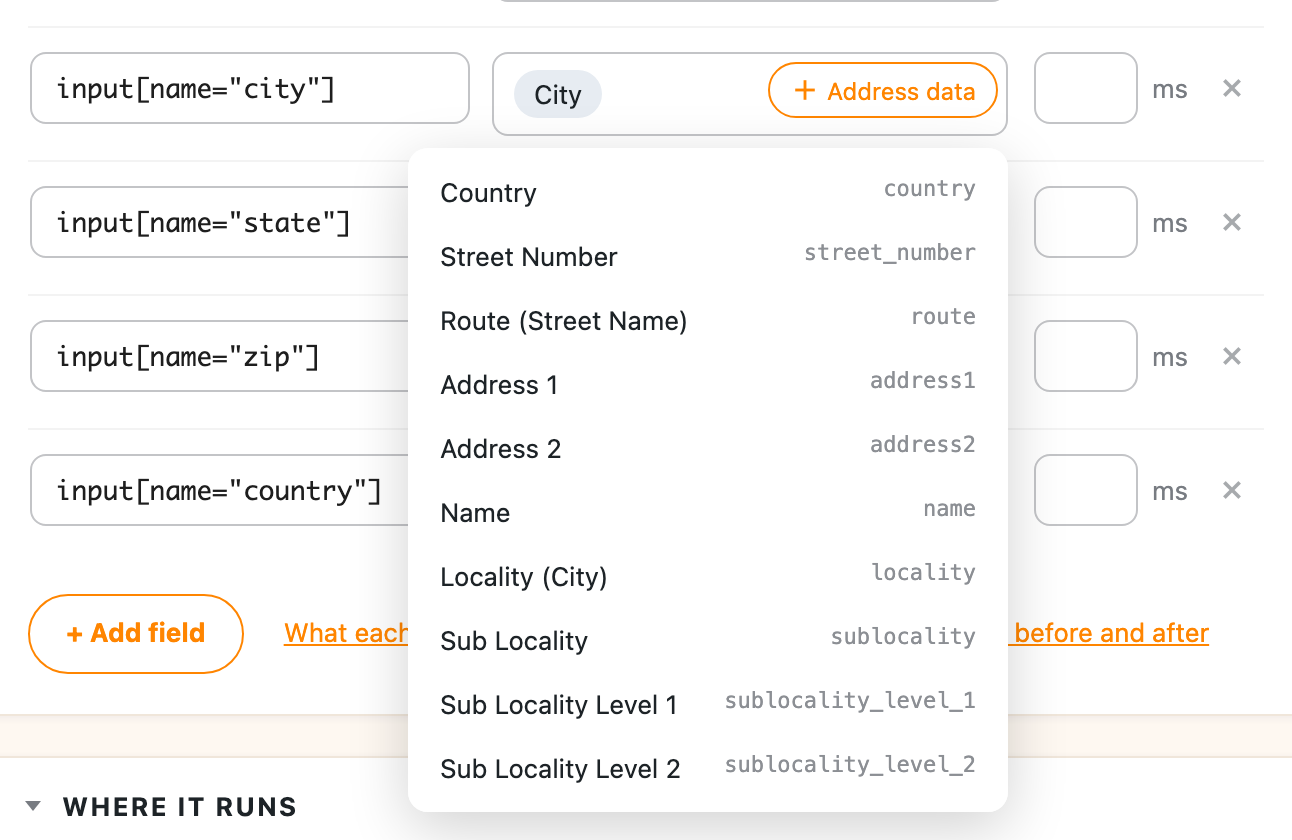
The part shows up as a tag in the field’s box. You can add more than one part to a field and type your own text around them, like a comma between the city and state.
In the free version
| In the list | What it is |
|---|---|
| Country | The country, like “United States” or “US” |
| Address 1 | The street number and street name, in the right order for the country (how it’s ordered) |
| Address 2 | The apartment, suite or unit, when Google has one |
| Locality (City) | The city or town |
| Administrative Area Level 1 | The state, province or region |
| Postal Code | The zip or postal code |
In Address Autocomplete Premium
Premium adds these:
| In the list | What it is |
|---|---|
| Street Number | The house or building number on its own |
| Route (Street Name) | The street name on its own |
| Name | The business or place name, when the address is a place (more on names) |
| Sub Locality, Sub Locality Level 1 to 5 | Areas inside a city, like a borough or district |
| Subpremise | The apartment, unit or suite number on its own |
| Administrative Area Level 2 | The county in the US, or the next level down from the state elsewhere |
| Administrative Area Level 3 to 5 | Smaller local areas, used in some countries |
| Neighborhood | The neighborhood name |
| Latitude, Longitude | The map coordinates of the address (more on coordinates) |
Full or short
Click a tag to choose Full or Short for that part. Short gives codes where Google has them, like “CA” instead of “California” or “US” instead of “United States”. Pick whichever your form expects, and keep in mind that a state dropdown on a checkout usually wants the short code.
When a part is missing
Google doesn’t send every part for every address, and some countries don’t use all of them. When a part is missing, the field gets nothing for it. You can give it a backup value to use instead, and add text before or after that only shows when the part is there.
Google’s documentation has the full list of address types if you want the details of what each one covers.