Long tagged links look messy in social posts, text messages and print. A short link turns yoursite.com/sale/?utm_source=facebook&utm_medium=social&utm_campaign=spring_sale into yoursite.com/x8d89c, which sends visitors on to the full link so the tags still reach Google Analytics. It’s on your own domain, there’s no account to sign up for, and each one counts its clicks.
Make a short link
- Build your link on the Link Builder tab.
- Under Shorten with, right above your link, pick your own domain. It’s listed by name, like
yoursite.com. - Copy the link from the Short link box that shows up under your full link.
In the Bulk Builder, pick your domain under Short links in the Save section and every link in the batch gets one, up to the full 2,000.
The same long link always gets the same short link, so building a link again gives you the one you already have. Made-up endings are six lowercase letters and numbers, leaving out ones that are easy to mix up, like l, 1, o and 0.
See the clicks
Every short link is listed under Tools > UTM Builder > Short Links, newest first, with its total clicks, clicks in the last 30 days and the date of its last click. Use the search box to find a link by its address or its tags.
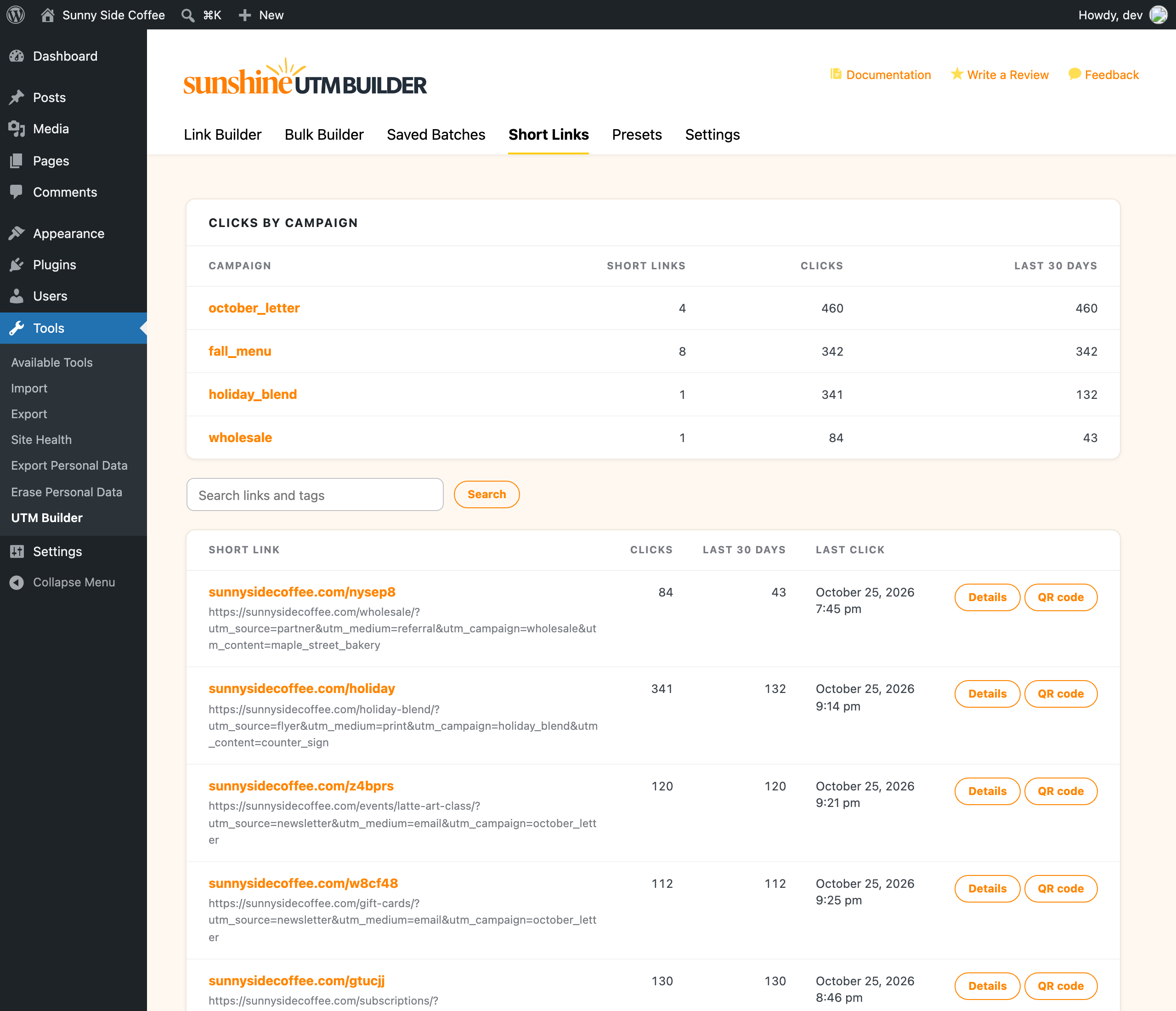
Above the list, Clicks by campaign adds up the clicks for your biggest campaigns, since every short link knows the tags of the link it goes to. Click a campaign to see only its links.
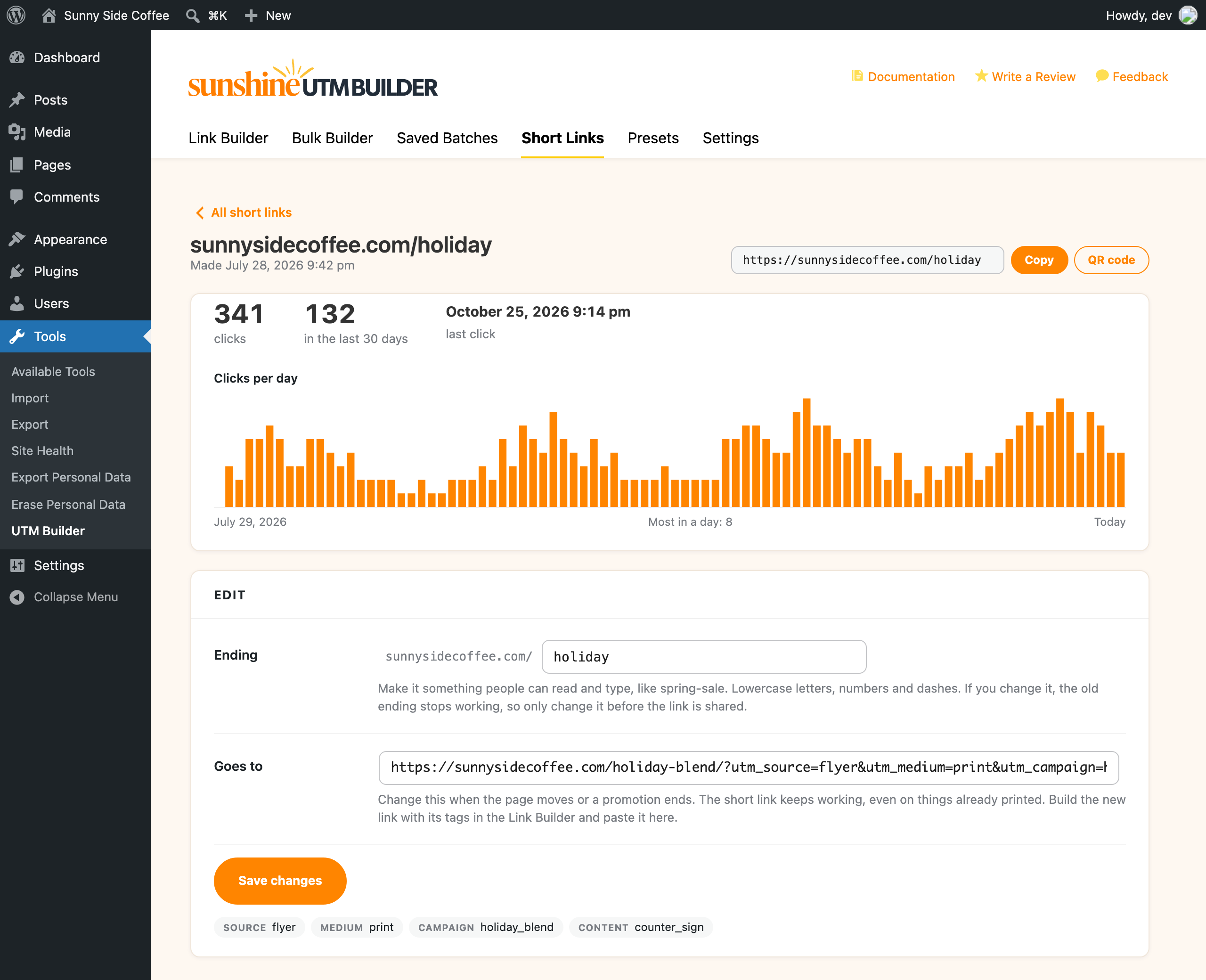
Click Details on any link for its own page, with clicks per day for the last 90 days and the most it got in one day.
Clicks from bots and link previews aren’t counted. Facebook, X, Slack and other apps load a link the moment it’s posted to build the preview, and search engines and uptime checkers follow links too, so leaving them out keeps the count to people. Only the count is stored, nothing about the person who clicked. If your numbers don’t match Google Analytics, this explains why.
Change where a link goes
When a page moves or a promotion ends, open the link’s Details page, change Goes to and click Save changes. The short link stays the same, so everyone who clicks it from then on lands on the new page, even from a flyer you’ve already printed or an email you’ve already sent.
Build the new link with its tags in the Link Builder first and paste the whole thing into Goes to, so the visits keep their tags.
Choose your own ending
A made-up ending like x8d89c works fine, but yoursite.com/spring-sale is easier to read out loud or type from a poster. On the link’s Details page, change Ending and click Save changes.
- Use lowercase letters, numbers and dashes, at least 3 of them.
- It can’t be an address WordPress uses for itself (like
wp-adminorfeed), or the address of a page on your site, since a page always wins over a short link. - Changing the ending stops the old one working. Choose it before you share the link.
Saved batches that held the old address are updated to the new one, so you won’t copy a dead link from there later.
Add a word in front of your short links
By default short links sit right after your domain, like yoursite.com/x8d89c. Under Settings > Link shortening, Short link address lets you add a word in front, like g, for links like yoursite.com/g/x8d89c.
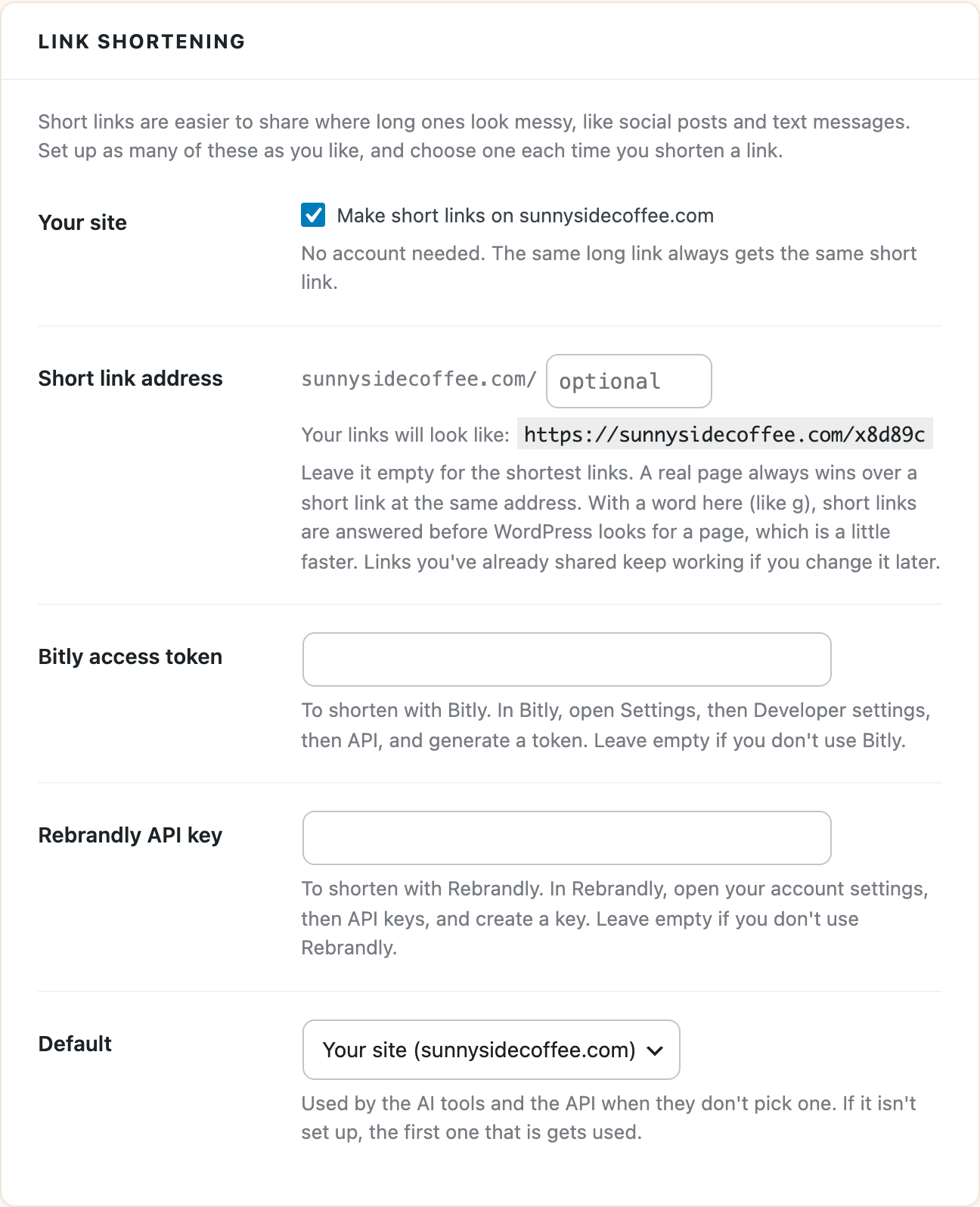
Leave it empty for the shortest links. With a word there, short links are answered before WordPress looks for a page, which is a little faster. Links you’ve already shared keep working if you add or change the word later.
Will short links slow down my site?
No, because without a word in front, a short link is only looked up after WordPress has found no page at that address, so normal page views never touch it. A real page always wins over a short link at the same address, and WordPress won’t give a new post or page an address that a short link already uses.
Delete a short link
At the bottom of a link’s Details page, click Delete this short link. Anyone who clicks it after that gets a “page not found” error, its clicks are deleted with it, and it’s cleared from any saved batch. Deleting a batch never deletes its short links, since they may already be posted somewhere.
Turn them off
Short links on your own domain are on from the start. To turn them off, uncheck Make short links on yoursite.com under Settings > Link shortening. They need pretty permalinks, which nearly every site already has. If one doesn’t work, see short link shows page not found.
Short links also work well for QR codes, since you can change where the code goes after it’s printed and every scan is counted as a click.